

Basics
Get around the app
Stantia is a social training app for hybrid athletes. Training is the content; community is the product. Five tabs cover almost everything you’ll do.
- Feed — posts from you and athletes you follow
- Workouts — your library, collections, and saved workouts
- Train — live sessions, Smart Timer, History, and insights
- Search — find athletes, workouts, and monthly rankings
- Profile — your page, settings, About, and help
Use + on Feed to create a post, and + on Workouts to build a new workout. In Profile → Settings you can edit display name, username, bio, specialties, feed preferences, country flag, theme (light/dark), and accent color.
Library
Create & organize workouts
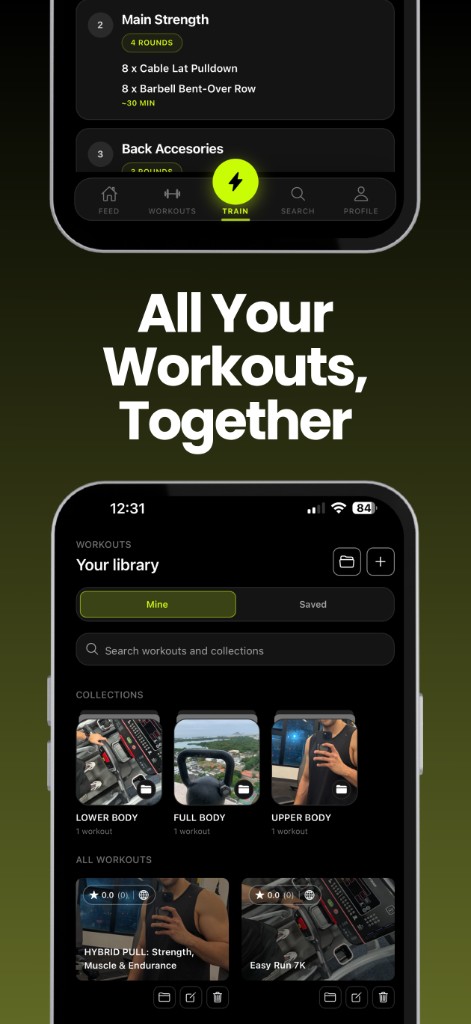
Workouts are training plans you build once and run anytime. Open Workouts to switch between Mine and Saved, search your library, and group plans into collections.
Build a workout
- Tap + to start a new workout
- Add a title, caption, specialties, and an optional cover (photo or color)
- Build with blocks — the sections that make up the session
- Add timing tips and choose Apple Watch metrics per block if you want
- Set visibility to public or private
Block types
- Text — freeform notes or coaching cues
- Exercises — an exercise list with optional prescription, rounds, and target time
- Intervals — timed segments that repeat across rounds (see below)
How interval blocks work
- Build one round of timed pieces (name, duration, optional pace/effort). Rest inside a round is just another timed piece.
- Set how many rounds that sequence should repeat.
- Optionally add rest between rounds (0 seconds = back-to-back).
Example: 1 min Zone 2 run → 1 min Zone 4–5 run, then choose rounds and rest between them.
Public vs private
- Public — visible on your profile and in Search; can be attached to posts
- Private — stays in your library until you publish; cannot be attached to posts
Collections
Collections are optional playlist-style folders under Mine and Saved. The same collections appear in both tabs. Membership is separate from the workout itself — deleting a collection never deletes or unsaves the workouts inside it.
Session preview
Preview before you start
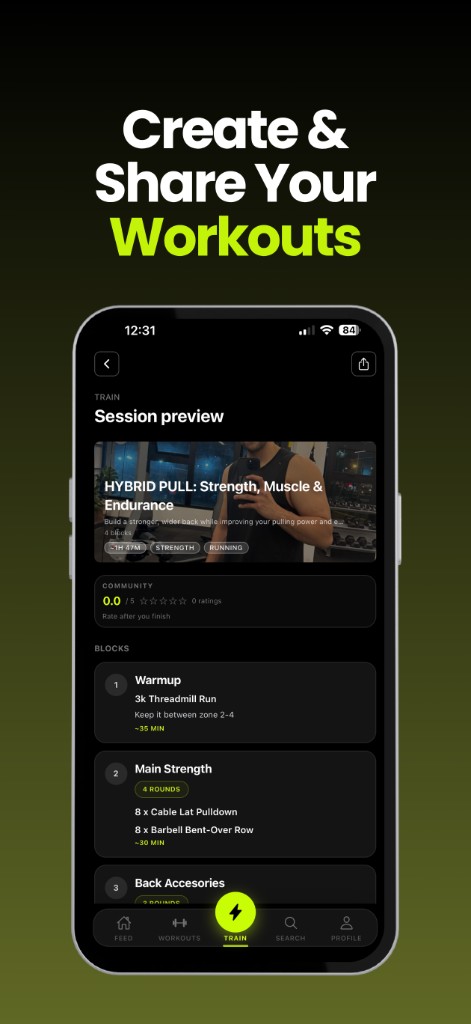
Open any workout to see the session preview: cover, duration, specialties, community rating, and every block in order — warmup, main work, accessories, and more. This is your last look before the countdown.
- Blocks are sections of the session
- Rounds repeat an exercises or intervals list
- Target time is a guide, not a hard stop (except timed formats like AMRAP or interval clocks)
- Community rating shows after athletes finish and rate the workout
After you finish
- Completed library sessions land in Train → History → Workouts completed
- You can rate someone else’s workout 1–5 stars (not your own, and not Smart Timers). One rating per athlete per workout — you can update it next time
- Share a session card in Full, Workout, Time, or List style via the system share sheet (Share exports the style you have selected)
- From the feed you can also publish a completed session post that shows your run summary (see Feed)
Live session
Train in real time
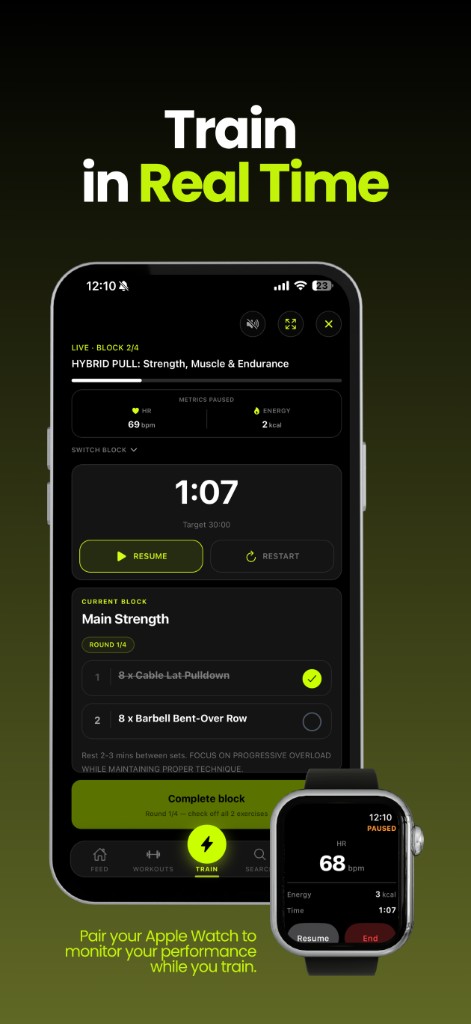
From session preview, start the session. Stantia runs block by block: check off exercises, track rounds, and use pause / resume / restart when you need them.
- Complete a block when its exercises (or timer) are done
- Flow: preview → countdown → active session → completion summary → optional rating and share
- An active session banner stays visible when you leave Train mid-session; on iPhone, Live Activity can show on Lock Screen / Dynamic Island
History
Under Train → History you’ll find:
- Activity — a year grid of daily training minutes (accent intensity)
- Workouts completed — full Train runs of library workouts
- Other sessions — editable freeform logs (title, notes, specialties, date; duration optional to save, but required to count toward History metrics and Hybrid Index). Finished Smart Timers save here automatically
Share an Other session as an image card from session detail. Deleting an Other session detaches it from linked posts (photos/caption stay); posts that only shared that session are removed.
Live Activity on iPhone
While a block timer is running, Stantia can show a Live Activity on the Lock Screen and Dynamic Island — workout title, block progress, and a large elapsed or countdown clock. Pause, resume, or cancel from there; cancel asks you to confirm because ending drops progress in that session.
Want wrist metrics while you train? See Apple Watch below.
Optional metrics
Apple Watch
Pair your Apple Watch to monitor performance while you train. Metrics are optional — Train works fully without a Watch. Stantia does not sell Health data or use it for advertising.
What you need
- A paired, reachable Apple Watch
- The Stantia Watch app installed on the Watch
- Apple Health permission when prompted (heart rate, energy, distance, and workout data)
Manage Health access anytime in iPhone Settings → Health. Without a Watch or permission, sessions still run — you just won’t see live Watch metrics.
How a live session starts
The Watch companion does not start workouts on its own. Open Train on iPhone, start the session, and start the block timer. When the timer is running, Watch goes live. Idle Watch copy says “Start the block timer on iPhone.” The iPhone clock is the source of truth; elapsed time syncs to the Watch.
Metrics mode per block
When you build a workout, set Apple Watch metrics on each block:
- Effort — heart rate (bpm) and energy (kcal), plus time. Default for most hybrid / strength-style blocks.
- Distance — Effort plus pace and distance (great for run, bike, swim, walk). Pure locomotion specialty workouts often default new blocks here.
- Off — skip Watch metrics for that block only (useful for rest, notes, or strength blocks where you don’t want wrist data).
If a block has no mode set, Train treats it as Effort when Watch metrics are available. Quick timers also default to Effort.
What you’ll see
- Live — HR, Energy, and Time on Effort blocks; Distance blocks also show Pace and Distance on iPhone and Watch
- Paused — metrics pause with the session (“Metrics paused”)
- Summary — after you finish, rollup stats (avg/max HR, energy, and pace/distance when captured) can save with the session on this device, upload to Stantia’s servers when Upload Watch metrics to cloud is on in Settings, and write the workout to Apple Health
Watch controls
- Pause / Resume mirror Train on iPhone
- End on Watch ends Watch metrics for the current block and pauses Train on iPhone (with confirmation)
- Restarting a timer to idle stops Watch metrics until you start the block timer again
There is no iPhone-only HealthKit fallback for live metrics — no Watch means no live wrist metrics. That’s intentional: Train stays usable either way.
Quick timer
Train with smart timers
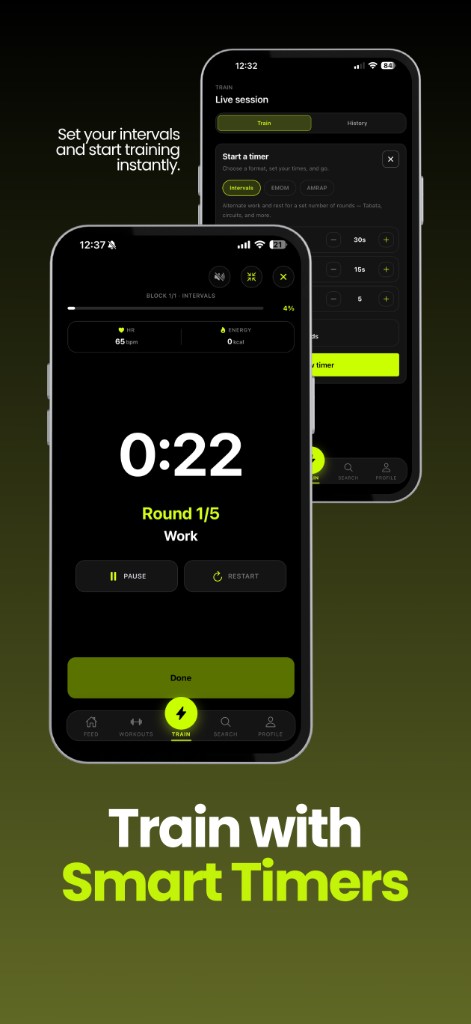
Need a clock without building a full library workout? Open Train and use Smart Timer (or the quick-start cards). Preview the setup, then go.
- Free — open count-up until you stop
- Timer — set a duration and count down
- Intervals — alternate work and rest for N rounds (adjustable in the UI)
- EMOM — every minute on the minute: finish the work before the next beep
- AMRAP — one countdown; as many rounds/reps as possible before the cap
Quick starts above the timer preset common sessions: Run / Swim / Ride (Free + Distance metrics) and Strength (Free + Effort). Finished Smart Timers save automatically under History → Other sessions (title, duration, optional Watch distance, notes; specialties editable later).
Smart Timers are not library workouts and are not rateable. They use the same pause / resume controls and optional Watch metrics when your Watch is ready. Share them from History or attach a completed run to a feed post — not as a Library workout attach.
Insights
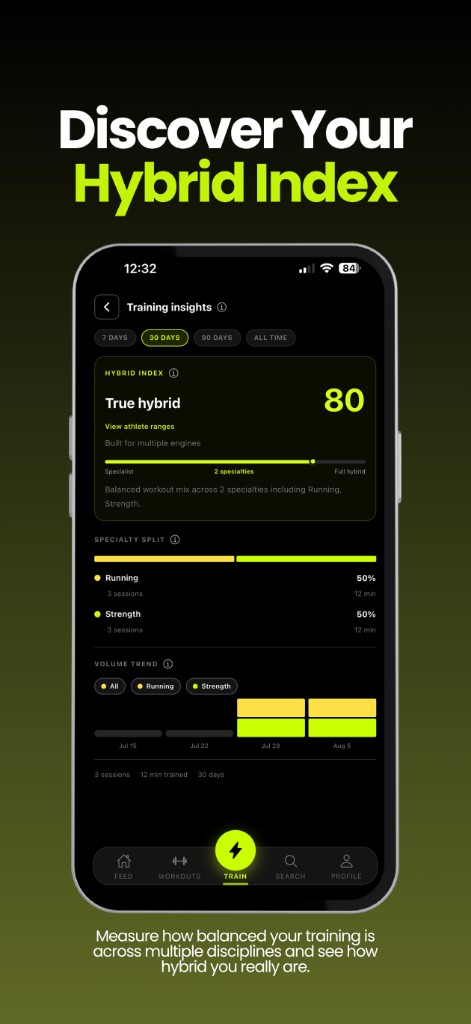
Discover your Hybrid Index
Hybrid Index (0–100) shows how hybrid your training is in a selected period — 7 days, 30 days, 90 days, or all time. Find it under Train insights.
It measures specialty balance, not duration, intensity, or calories. Each completed library workout and each timed Other session (with duration) counts toward every specialty it includes.
How the score is built
- Balance (up to 70) — how evenly workouts are distributed across specialties
- Diversity (up to 30) — how many distinct specialties you train; four or more unlocks the full diversity bonus
- Full hybrid (100) — roughly four specialties at about equal frequency (~25% each)
Athlete ranges
- Specialist — one specialty
- Developing hybrid — 0–34
- Dual discipline — 35–54
- Hybrid builder — 55–74
- True hybrid — 75–99
- Full hybrid — 100
Insights also show specialty split and volume trends so you can see where your mix leans — use it as a compass, not a judgment of effort.
Community
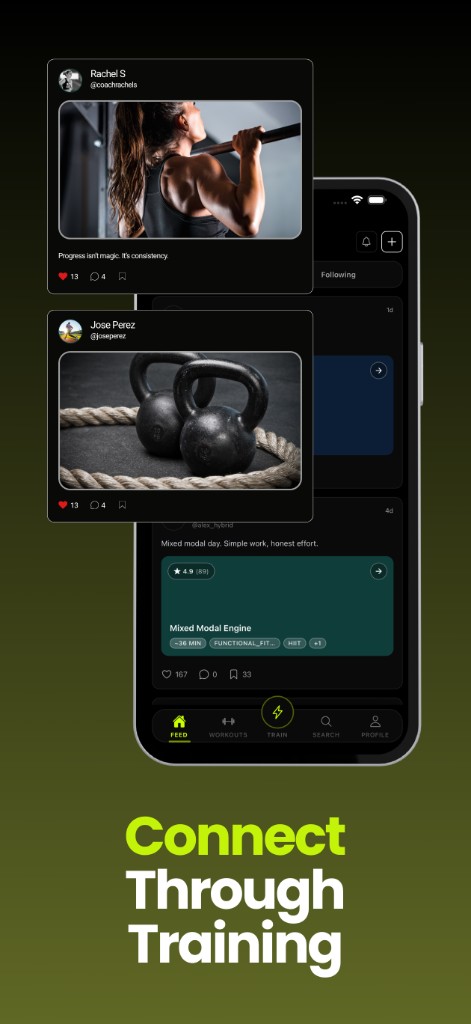
Connect through training
The feed is where athletes share progress, ideas, and workouts. Follow people you want to train beside — your feed shows their posts plus yours.
Creating a post is a short multi-step flow (same chrome as New workout): Content (photos + caption) → Attach → Publish. Each part is optional, but the post needs at least one of caption, photos, or a valid attachment.
What you can attach
Pick at most one attach type per post:
- Library workout — a public workout from your library, or one you’ve Saved from another athlete (great for recommending training). Private library workouts cannot be attached.
- Completed workout — a Train History run (including Smart Timer). On the post, viewers see a Completed workout banner; open detail for Post / Resumen (Time-highlight summary) and Open workout when the source still exists.
- Other session — pick an existing History → Other session, or create one while posting. Shows as a Completed session banner and opens Session resume.
- Photos: up to 10; choose 4:3 or 4:5 once for the whole post, then crop each photo
- Like (including double-tap), comment, save, and share posts you want to keep
- Use Search for athletes, workouts, and specialty filters; Ranking shows monthly top athletes (top 100 earn a profile badge)
- You’ll get an in-app notification when someone recommends your public workout in a post, or shares a completed Train run of your workout
Save workouts from the feed or Search to pull them into Saved — then attach them when you want to recommend them.
FAQs
Common questions
Quick answers from how Stantia works today.
What is a hybrid athlete?
Someone who trains across multiple disciplines — for example strength and running, or Hyrox and CrossFit — instead of focusing on a single sport.
Is Stantia free?
Yes — Stantia is free to use. If premium features arrive later, we will communicate pricing clearly before anything changes.
Who can see my workouts?
Public workouts and posts are visible to other Stantia athletes. Private workouts stay in your library until you choose to share them. Private workouts cannot be attached to feed posts.
How do I start a training session?
Open a workout → review the session preview → start. Or go to Train and use Smart Timer / quick starts (Run, Swim, Ride, Strength) without building a workout first.
What is Smart Timer?
Train without a saved workout: Free, Timer, Intervals, EMOM, or AMRAP. Quick starts preset Run / Swim / Ride (distance) or Strength (effort). Finished timers save under History → Other sessions. See the Smart timers guide.
Can I recommend someone else’s workout in a post?
Yes. Save their public workout, then when you create a post choose Attach → Library and pick it from Saved. Publishing re-checks that the workout is still public. The workout owner gets a notification.
What’s the difference between Completed workout and Completed session?
Completed workout is a Train History run of a library workout (or Smart Timer) shared on the feed, with a Resumen summary. Completed session is an Other session (freeform log) shared on the feed; tap opens Session resume.
What’s a block?
A block is a section of a workout: freeform text notes, an exercises list (optionally with rounds), or timed intervals. Stack blocks to build the full session.
Do I need an Apple Watch?
No. Watch metrics are optional. With a paired Apple Watch, the Stantia Watch app, and Health permission, you can see live heart rate, energy, and distance while you train. Without a Watch, sessions still run normally. See the Apple Watch guide for setup and metrics modes.
Why isn’t my Apple Watch showing metrics?
Confirm the Watch is paired and reachable, the Stantia Watch app is installed, and Health permission is on. Metrics only go live when the block timer is running on iPhone — opening Train alone is not enough. Check that the block’s Watch mode is Effort or Distance, not Off.
What’s the difference between Effort and Distance?
Effort tracks heart rate and calories. Distance adds pace and distance for locomotion work (run, bike, swim, walk). Off skips Watch metrics for that block only.
What is Hybrid Index?
A 0–100 score of how balanced your completed workouts are across specialties in a time range. It reflects mix and diversity — not intensity or calories.
How does the feed work?
Your feed shows your posts and posts from athletes you follow. Create posts with text, photos, and optionally a library/Saved workout, a completed Train run, or an Other session. Use Search to discover athletes and workouts.
How is the monthly athlete ranking calculated?
Rankings combine workout rating quality and volume received during the selected month. Only athletes in the top 100 earn a profile badge.
Can I change my username or reset my password?
Yes. Go to Profile → Settings → Edit profile for your username (lowercase letters, numbers, and underscores). Use Settings → Reset password to get email instructions.
How do I delete my account?
In the app: Profile → Settings → Delete account. You can also follow the steps on our delete account page.
Still stuck? Email fmatamorosa09@icloud.com — we typically respond within 2 business days.